What is Lumofy?
Lumofy is a skills-based learning platform. It helps you answer 3 questions about your workforce:
What skills does each job role need? Lumofy builds a competency framework for your company, with 5 proficiency levels for each competency. Its built-in AI assistant, Luma, can suggest competencies for each role based on your company profile.
Which employees are missing those skills? Lumofy evaluates employees using assessments, learning analytics, manager feedback, and self-feedback, then compares each employee’s level to the level their role requires.
What training closes the gap? You can create learning pathways, courses, short videos, quizzes, and live sessions in Arabic or English, assign them to the employees who need them, and track completions and certificates.
How the integration works
When you connect Lumofy to ZenHR, your company profile, organizational structure, job roles, and employees sync to Lumofy automatically, so you don’t have to set up your company again in Lumofy. You can also send the competency framework you already built in ZenHR.
Setting up the integration takes 4 stages:
Request: Request the integration from Marketplace Integrations and enter the number of licenses you need.
Approval: The ZenHR team grants your licenses, and the button on the Lumofy card changes from Request to Setup.
Setup: Complete the 4-step Set up Lumofy Integration.
Activation: Sign in to Lumofy to activate the integration.
Before you start
Make sure you have:
Access to Marketplace Integrations in ZenHR.
The number of Lumofy licenses (seats) your company needs.
Your preferred start date.
A Lumofy account to sign in with at the activation step.
Your competency framework set up in ZenHR, if you plan to send competencies from ZenHR.
Step 1: Request the integration
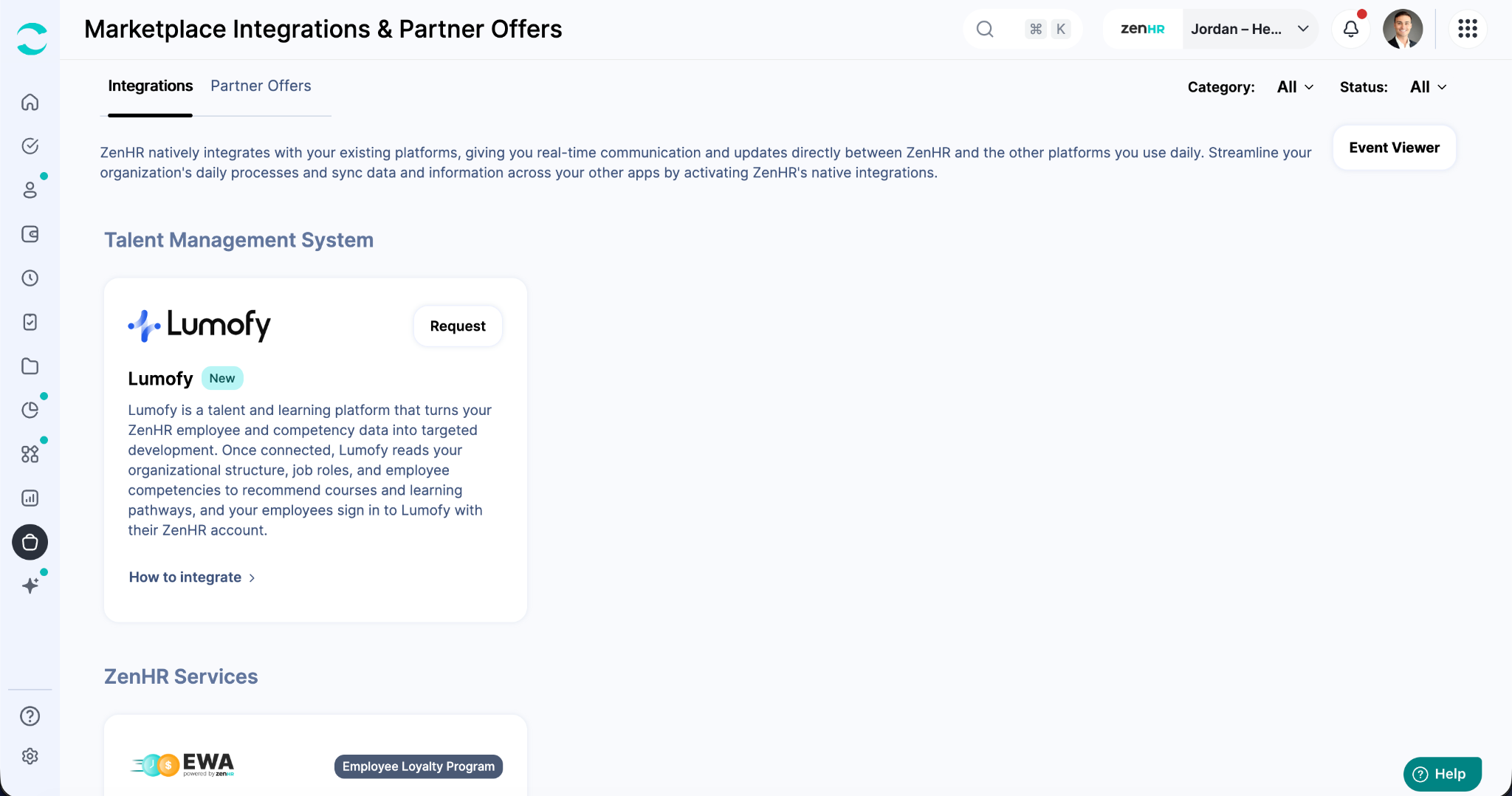
You send a request to the ZenHR team from the Lumofy card in Marketplace Integrations.
Go to the Marketplace Integrations page.
On the Integrations tab, find Lumofy under Talent Management System, or search for “Lumofy”.
Click the “Request” button on the Lumofy card.
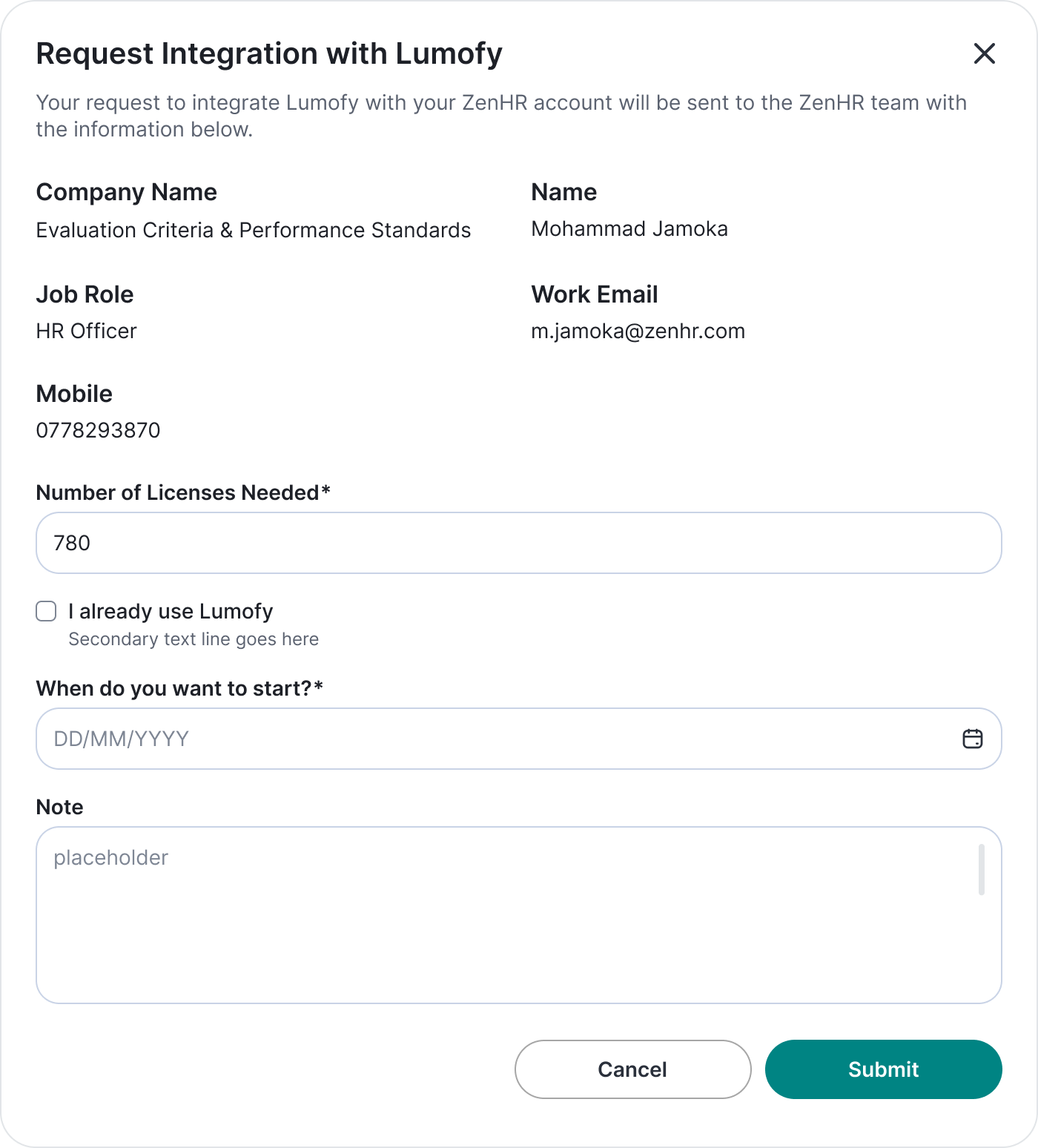
The Request Integration with Lumofy window opens.
Review your contact details: Company Name, Name, Job Role, Work Email, and Mobile. ZenHR fills these in from your account.
To use different details, click the “Change Contact Details” button.
Enter the Number of Licenses Needed (required).
If your company already has a Lumofy account, select I already use Lumofy.
Select When do you want to start? (required, DD/MM/YYYY).
Optional: Add a Note for the ZenHR team.
Click “Submit”.
Your request and contact details are sent to the ZenHR team.
Step 2: Wait for license approval
The ZenHR team reviews your request and grants your licenses. No action is needed from you.
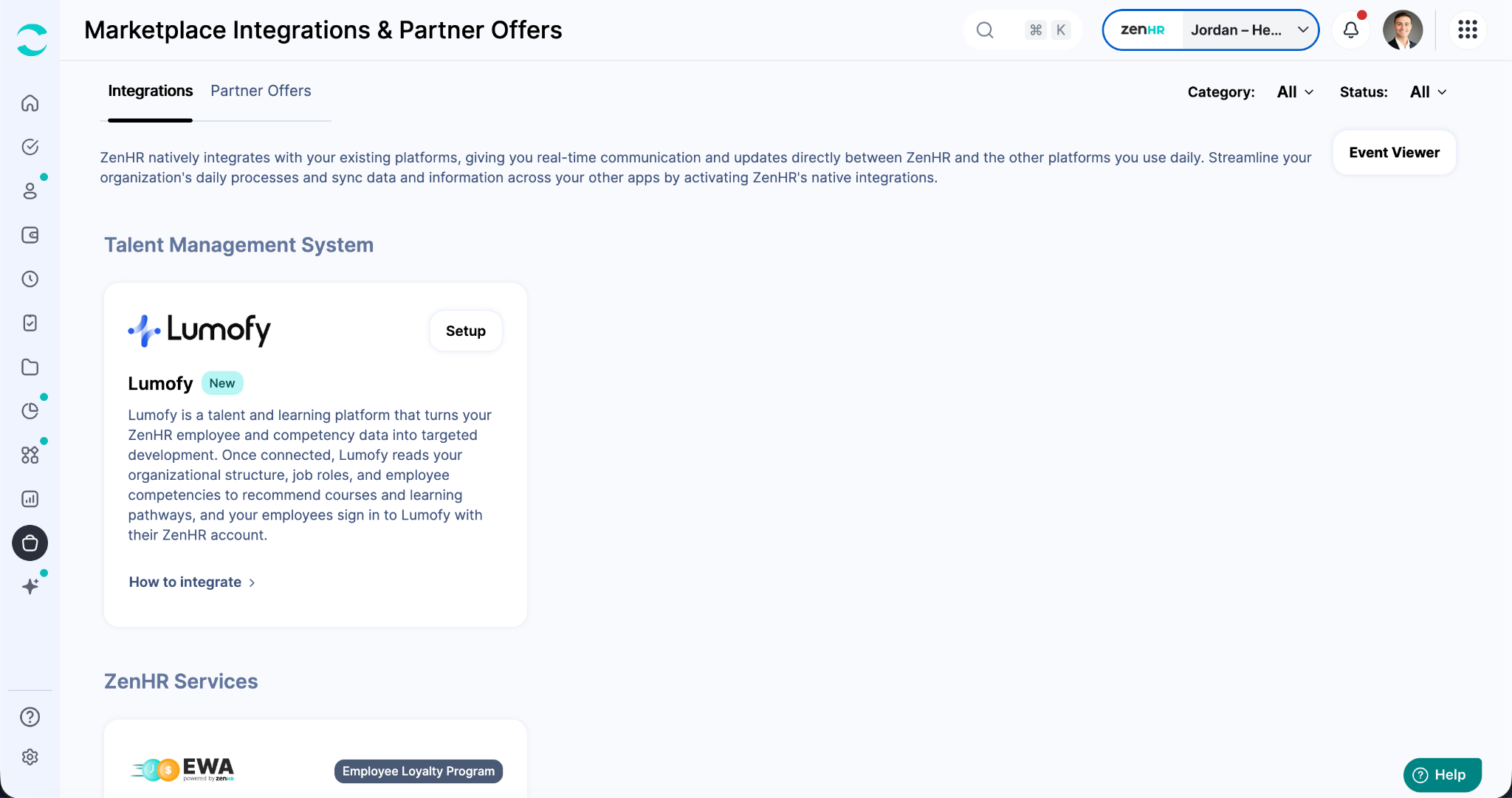
When your licenses are granted, the button on the Lumofy card changes from “Request” to “Setup”.
Step 3: Set up the integration
To set up the integration, click the “Setup” button on the Lumofy card. The Set up Lumofy Integration wizard opens. Click the “Next” button to move to the next step, or the “Cancel” button to exit.
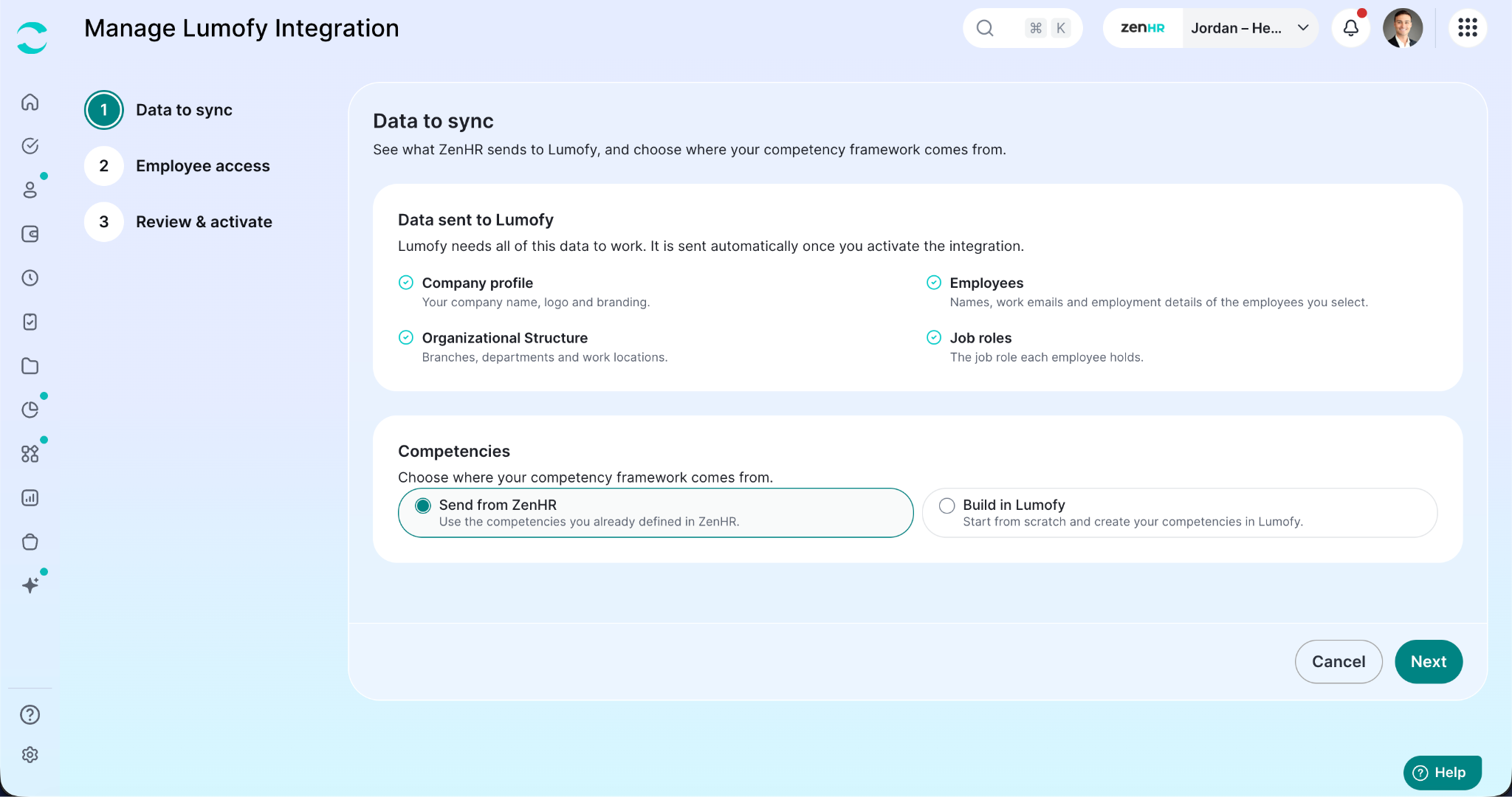
3.1 Data to sync
This step shows the data sent to Lumofy and lets you choose where competencies come from.
Data sent to Lumofy. Lumofy needs all of the following data to work. It is sent automatically once you activate the integration, and you cannot deselect it:
Company profile
Employees
Organizational Structure
Job roles
Competencies. Choose where your competency framework comes from:
Send from ZenHR (default): use the competencies you already defined in ZenHR.
Build in Lumofy: start from scratch and create your competencies in Lumofy.
Click the “Next” button.
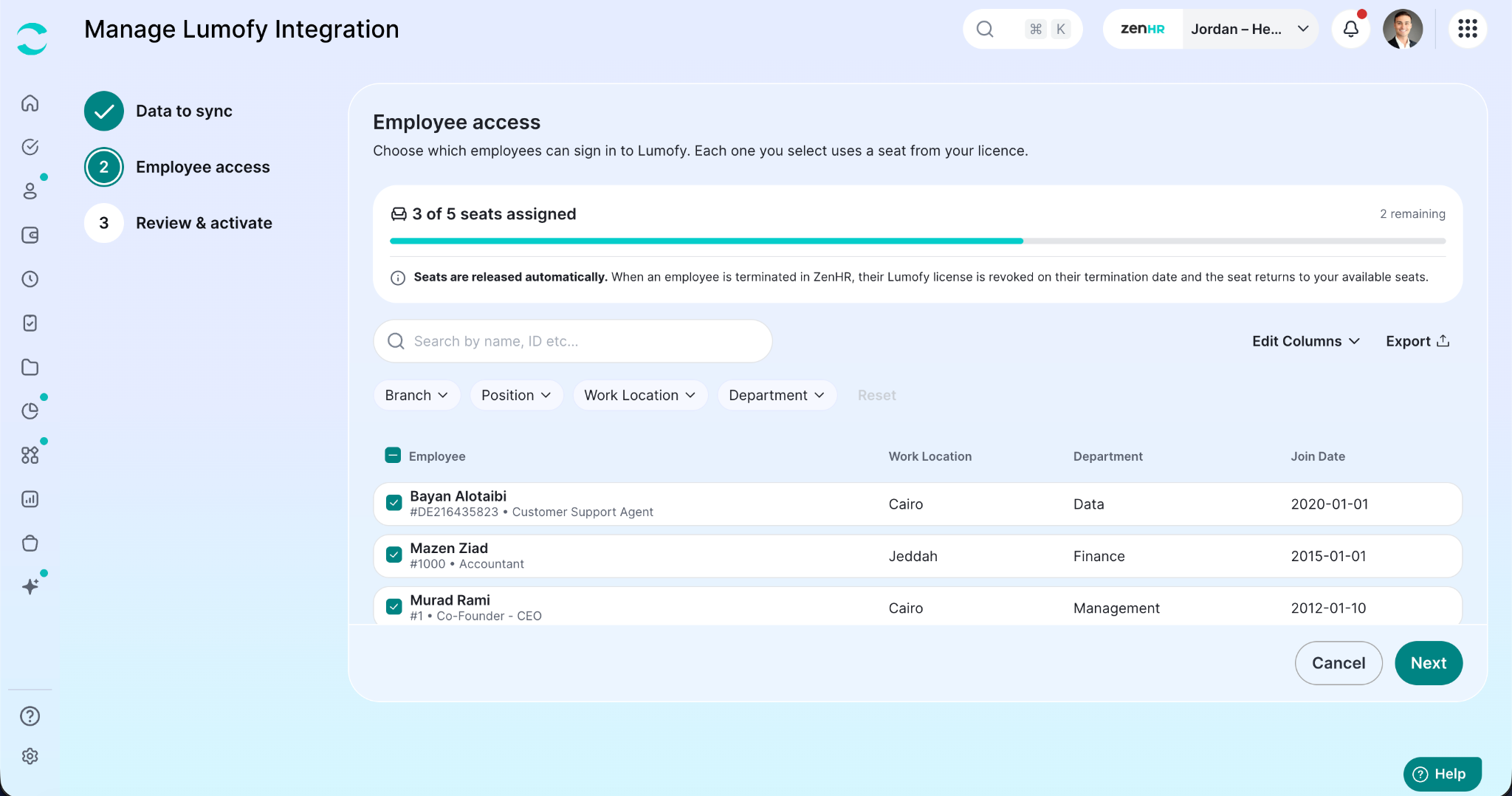
3.2 Employee access
Select the employees who get access to Lumofy. Each selected employee uses 1 seat.
Check the seat counter at the top, for example, “247 of 780 seats assigned”.
Find employees by name or ID, or filter by Branch, Employee, Position, Work Location, Department, or More Filters.
Select the checkbox next to each employee. To select everyone in the list, select the checkbox in the table header.
Optional: Click the “Edit Columns” button to change the visible columns, or the “Export” button to download the list.
Click the “Next” button.
Seats are released automatically. When an employee is terminated in ZenHR, their Lumofy license is revoked on their termination date, and the seat returns to your available seats.
3.3 Review & activate
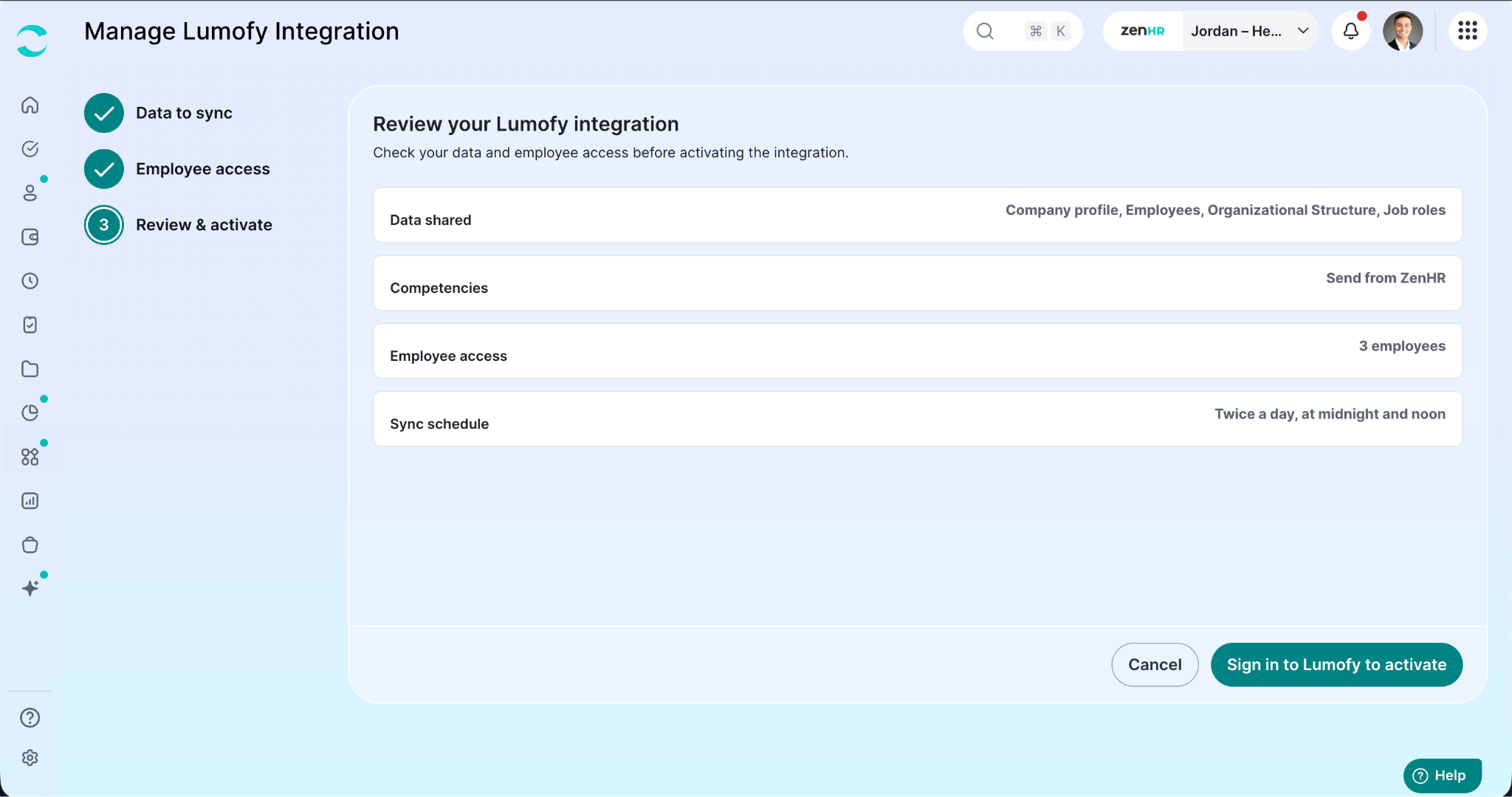
Review the Summary:
Data shared: The data sent to Lumofy.
Competencies: Whether competencies are sent from ZenHR or built in Lumofy.
Employee access: The number of employees with access.
To make changes, go back to the relevant step.
When you’re ready, click the “Sign in to Lumofy to activate” button and sign in to Lumofy with your ZenHR account credentials. The integration is active once you sign in.
Managing seats
Your total number of seats equals the number of licenses granted by the ZenHR team.
Assigning seats: Each employee you give access to uses 1 seat.
Releasing seats: When an employee is terminated in ZenHR, their Lumofy license is revoked on the termination date, and the seat becomes available again. No action is needed.
Adding seats: Contact the ZenHR team to increase your licenses.
Was this article helpful?
That’s Great!
Thank you for your feedback
Sorry! We couldn't be helpful
Thank you for your feedback
Feedback sent
We appreciate your effort and will try to fix the article