The Performance & Evaluation Module is a powerful solution designed to simplify and enhance employee performance management. It aligns individual goals with organizational objectives, allowing for seamless evaluation cycle creation and goal-setting through OKRs (Objectives and Key Results).
With customizable evaluation templates, including competencies and general factors, this module ensures a structured and transparent assessment process. It offers flexible rating types, taskholder assignments, automated notifications, and in-depth reporting to drive efficiency. Additional features like follow-ups, reviews, bulk actions, and alerts provide adaptability and ease of use, making performance evaluations fair, consistent, and effortless to manage across teams.
TABLE OF CONTENTS
Stages Overview
The evaluation cycle consists of four required stages and two optional stages:
Required Stages:
Writing OKRs:
Employees or managers define Objectives and Key Results (OKRs) to align with company goals.
Auditing OKRs:
Managers or peers review submitted OKRs for clarity, alignment, and feasibility.
Performance Evaluation:
Employees are assessed based on their OKRs, general performance, and other criteria.
Auditing Results:
A final review ensures the accuracy and fairness of performance evaluations.
Optional Stages:
Follow-up:
Allows employees and managers to check progress and make adjustments during the evaluation period.
Review:
A retrospective assessment may involve self-assessment, peer reviews, or managerial feedback.
Conditional Stage:
Employee Self Assessment:
Added to the cycle only when the evaluation template has both "Activate employee self-assessment" and "Self-assessment as a separate stage" enabled. It runs between the Auditing OKRs and Performance Evaluation stages, giving the employee their own dated window to rate their OKRs, competencies, and general factors and add their self-assessment notes. When it is not enabled, employees self-assess during the Performance Evaluation stage, as before.
Key Terms and Definitions
OKRs (Objectives and Key Results):
A goal-setting framework that defines measurable goals and tracks outcomes.
General Factors:
Broad performance criteria, such as teamwork, communication, innovation, and leadership.
Competencies:
Skills, behaviors, and knowledge areas required for specific roles.
Taskholders:
Individuals or teams responsible for specific tasks or goals.
Rating Types:
Different methods are used to evaluate employee performance (e.g., numerical scales or descriptive ratings).
Evaluation Cycle:
The entire process from setting OKRs to auditing results.
Rating Types and Measurement Units:
Standardized scales or units for performance assessment.
Employee Self Assessment:
A dedicated, dated stage in which the employee rates their own OKRs, competencies and general factors and adds their self-assessment notes, before the manager’s Performance Evaluation window opens. The taskholder for this stage is always the evaluated employee and cannot be reassigned.
How to Add Rating Types and Measurement Units (If OKRs are activated)
User Menu → System Preferences → Evaluation Setup → Rating Types & Measurement Units
This page offers a comprehensive overview of evaluation rating types and measurement units. Rating types can have multiple measurement units to use in OKRs.
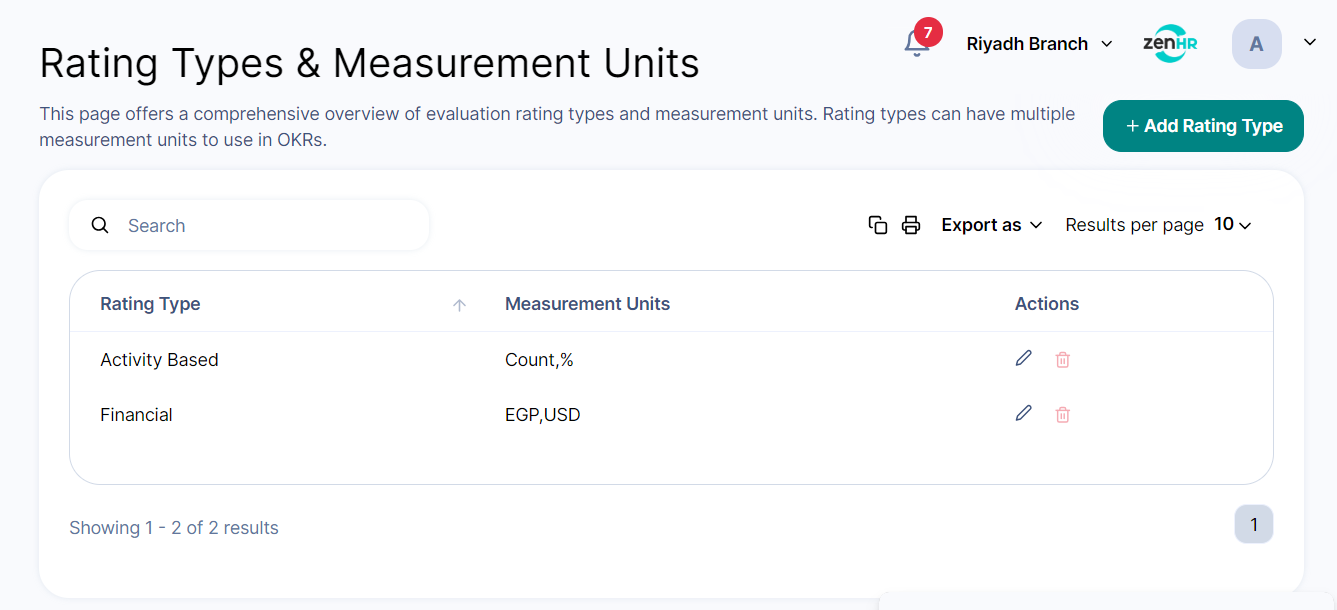
Click on “Add Rating Type”, this will open a slider to define the rating type name and add measurement units under it.
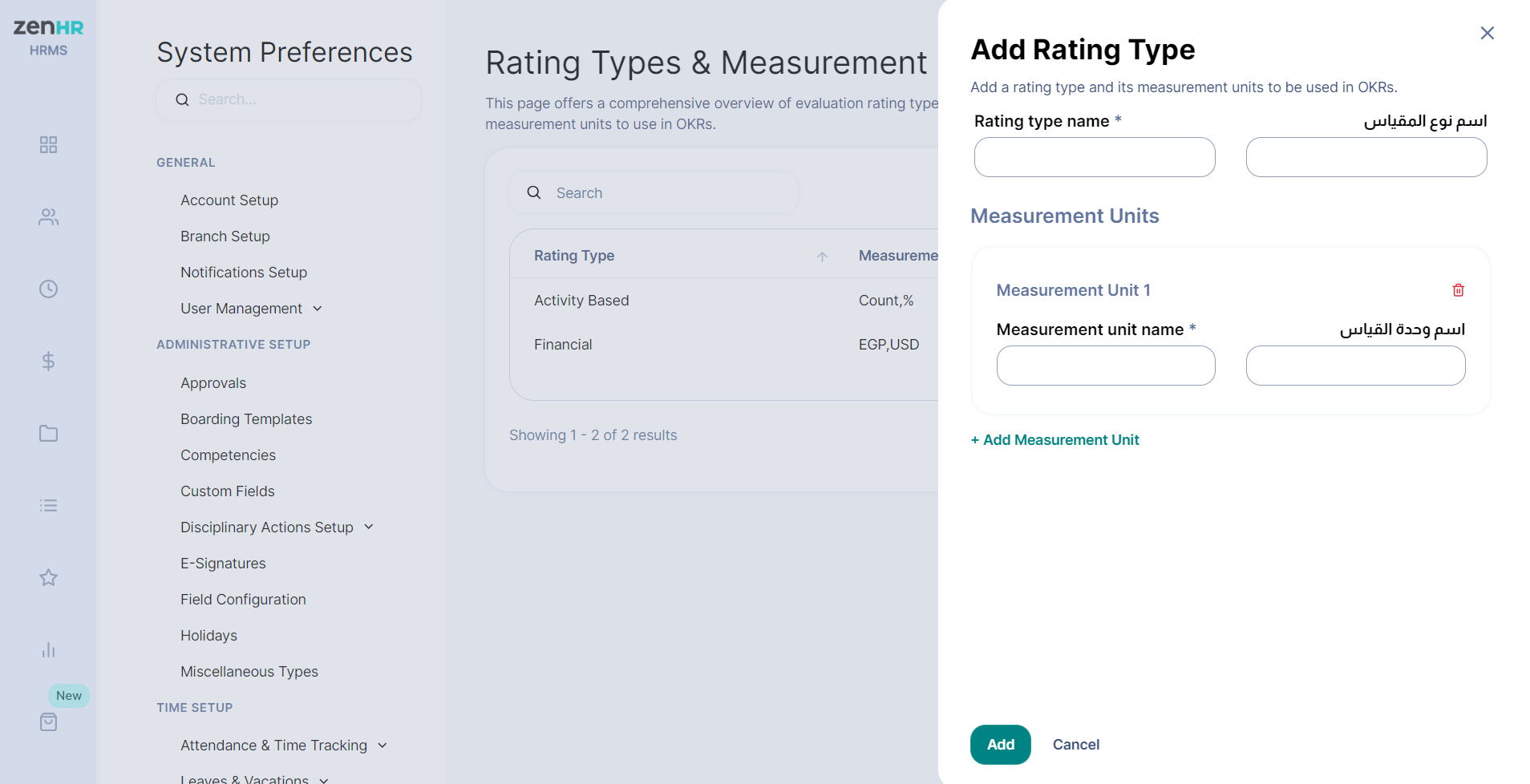
Note: Rating types or measurement units that are in use cannot be deleted.
How to Add Evaluation Templates
Main Menu → Performance Evaluation → Performance Evaluation Setup → Evaluation Templates
On this page, create templates to evaluate employee performance more efficiently. Customize each template and choose whether you want employees to be evaluated based on OKRs, Competencies, General Factors, and more.
Click on the “Create Evaluation Template” button and complete the following steps.
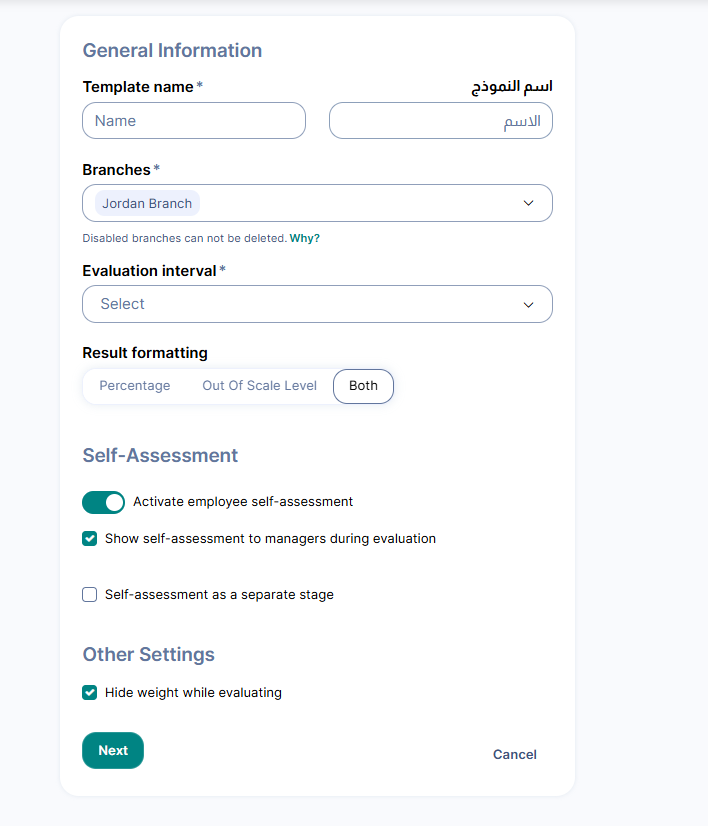
Step 1: General Information
Template Name
Branches:
Select branches where this template will be used. Any changes to the template will apply across all shared branches.
Note: Disabled branches cannot be deleted if they are linked to active evaluation cycles.
Evaluation Interval: Choose from:
Annual
Biannual
Quarterly
Monthly
Result Formatting:
Choose how results should appear (Percentage, Out-of-Scale Level, or Both).
Note: If Out-of-Scale Levels is selected, auditing results will not be displayed as percentages.
Self-Assessment:
Enable employees to evaluate themselves.
Option to display self-assessment results to managers.
Self-assessment as a separate stage: Enable this option to give employees a separate stage to complete their self-assessment, with its own start and end dates. If disabled, employees will complete their self-assessment during the Performance Evaluation stage.
Note: This option is only available for branches where the feature is enabled. If you do not see it, contact support.
Other Settings:
Option to hide weight while evaluating.
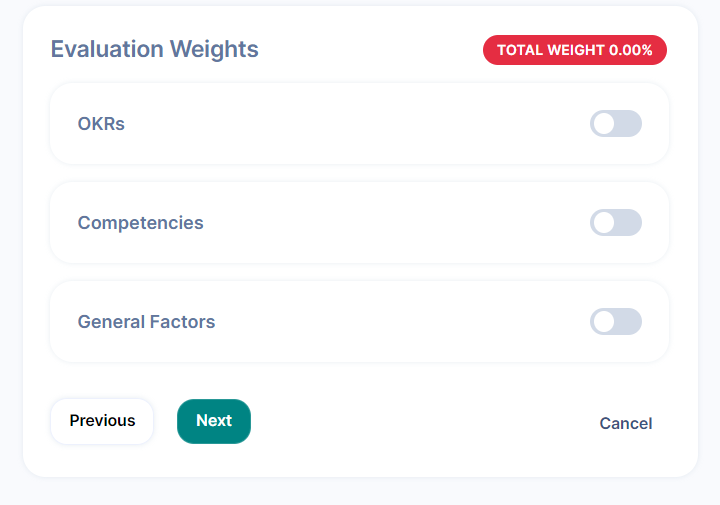
Step 2: Evaluation Weights
Choose what to include in the evaluation (OKRs, Competencies, General Factors).
The total weight allocation should sum to 100%.
 \
\
OKRs
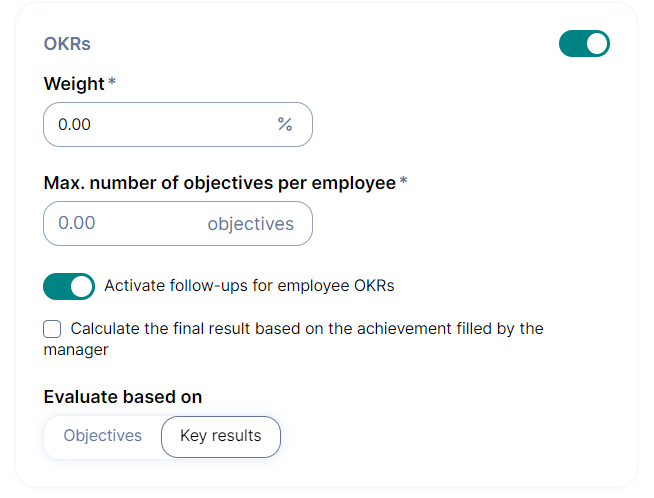
If OKRs are activated, add the weight you want the OKRs to have and the maximum number of objectives to be added per employee.
Enable “Activate follow-ups for employee OKRs” if you would like the follow-up stage to be open for the employees and manager to add achievements continually between the end of the auditing OKRs stage and the start of the performance evaluation stage.
Additionally, select if you want the evaluation to be based on objectives or key results.
Competencies
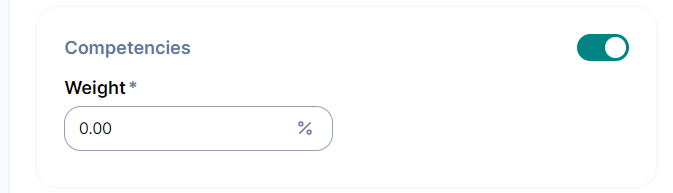
If Competencies is activated, enter the weight you would like competencies to have. The competencies that will be added to an employee will be the same competencies that are added to the employee’s position in the Position Setup.
General Factors
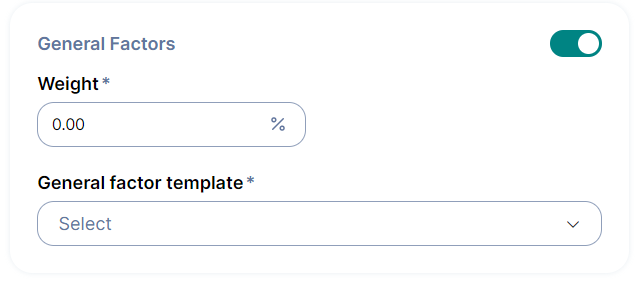
If General Factors is activated, enter the weight you would like the general factors to have and select the general factors template you want to add to the employees during the evaluation cycles. Please note that before this step you need to create the general factor template. (LINK)
Step 3: Stages & Task Holders
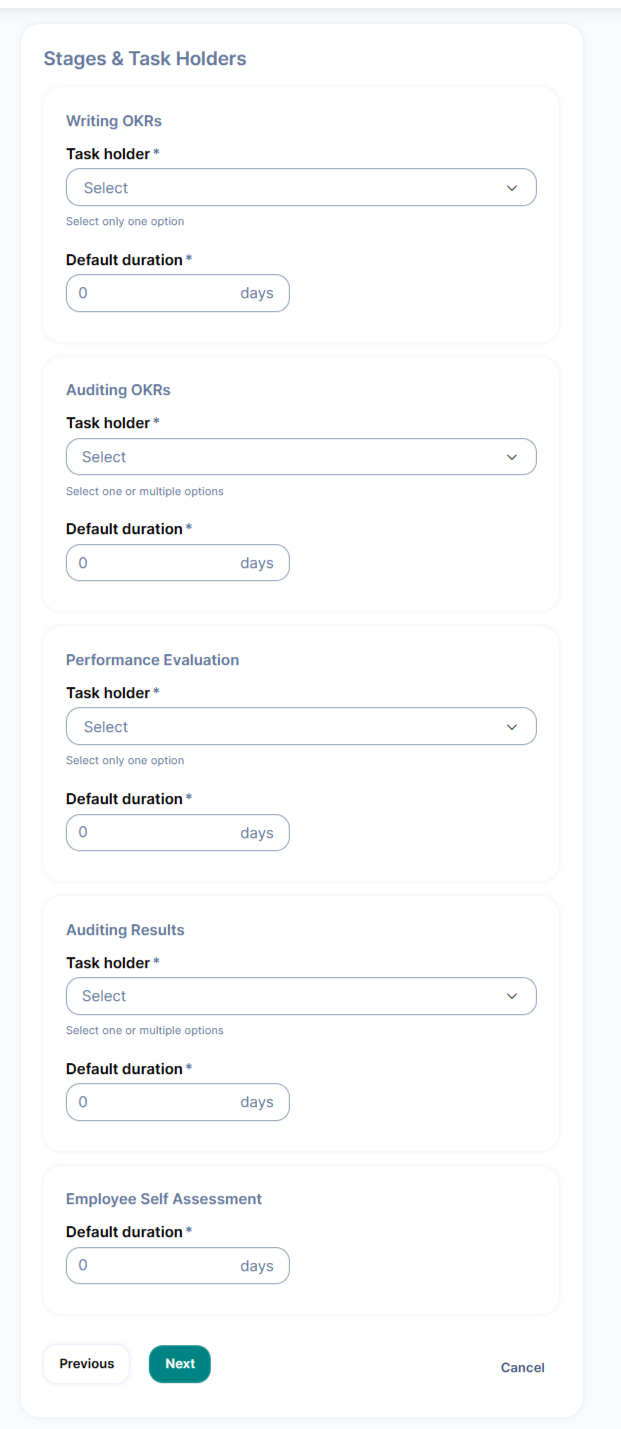
Assign the taskholder for each stage and set the stage duration.
If Self-assessment as a separate stage is enabled, an Employee Self Assessment section will appear. Set the duration of this stage in days.
The taskholder for this stage is always the employee being evaluated and cannot be changed.
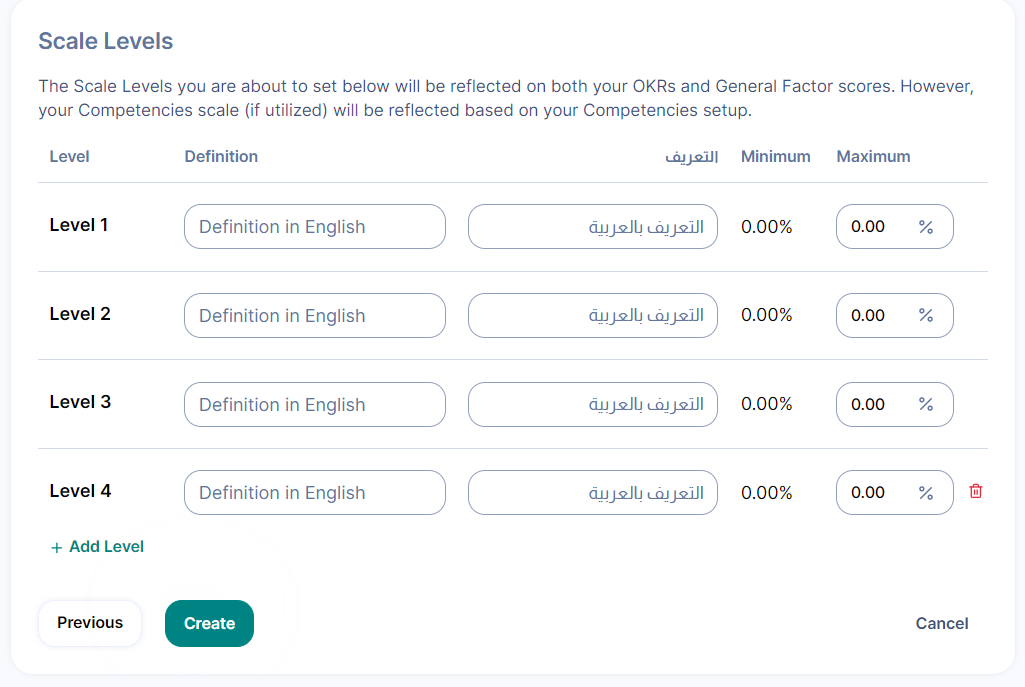
Step 4: Scale Levels
Assign evaluation scale levels, ensuring there are no gaps between them.
Note: The minimum level is always locked and filled with the previous scale's maximum value.
How to Add General Factors Templates
Note: This is only needed if you want to activate the General Factors in your evaluation templates.
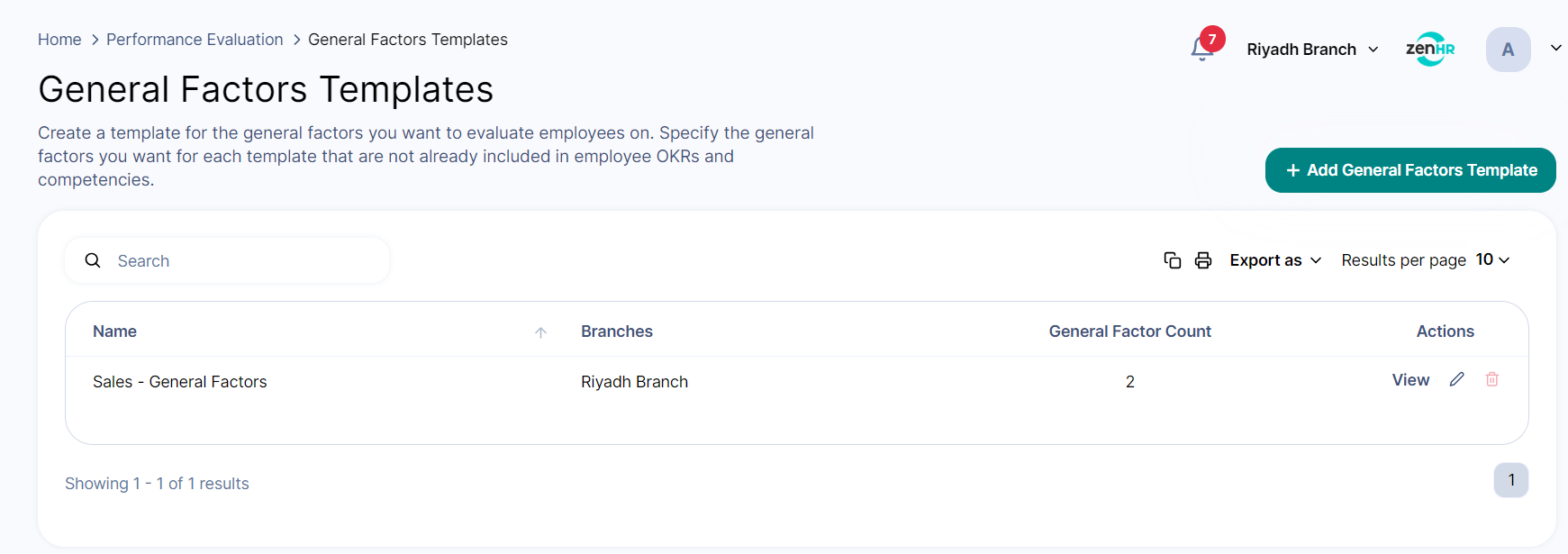
Main Menu → Performance Evaluation → Performance Evaluation Setup
In the Performance Evaluation Setup section, click “General Factors Templates”.
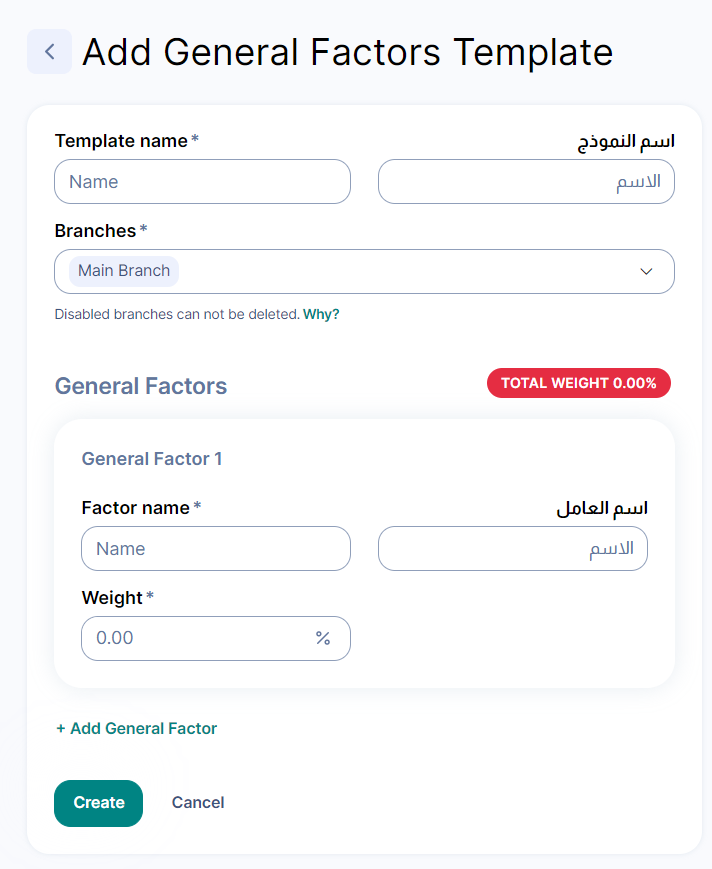
Create a template by naming it and adding general factors with corresponding weights.
The total weight should equal 100%.
Select branches where this template will be shared.
Note: Disabled branches cannot be removed if they are linked to an active evaluation cycle.
How to Create an Evaluation Cycle
Main Menu → Performance Evaluation → Manage Evaluations → Evaluation Cycles
On the Evaluation Cycles page, click on the “Add” button to create a cycle.
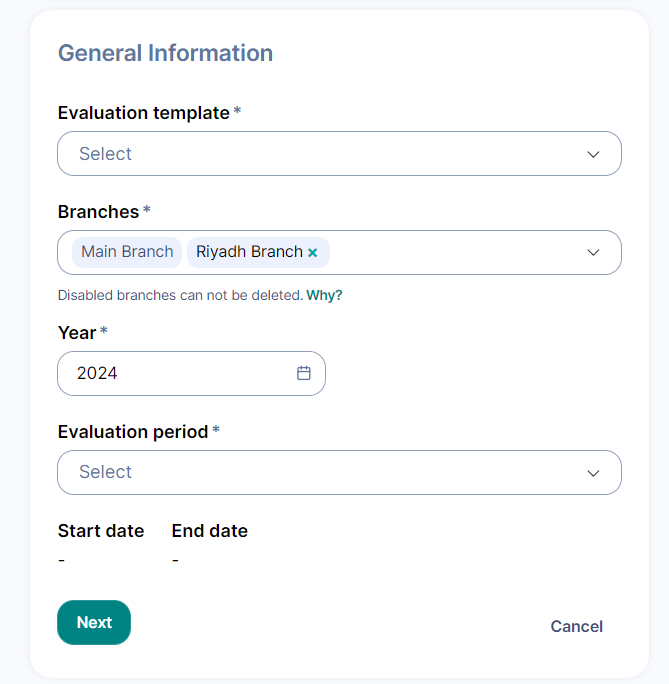
Step 1: General Information
Select a template and the branches it applies to.
Choose an evaluation interval (Annual, Biannual, Quarterly, Monthly).
Start and end dates are automatically filled.
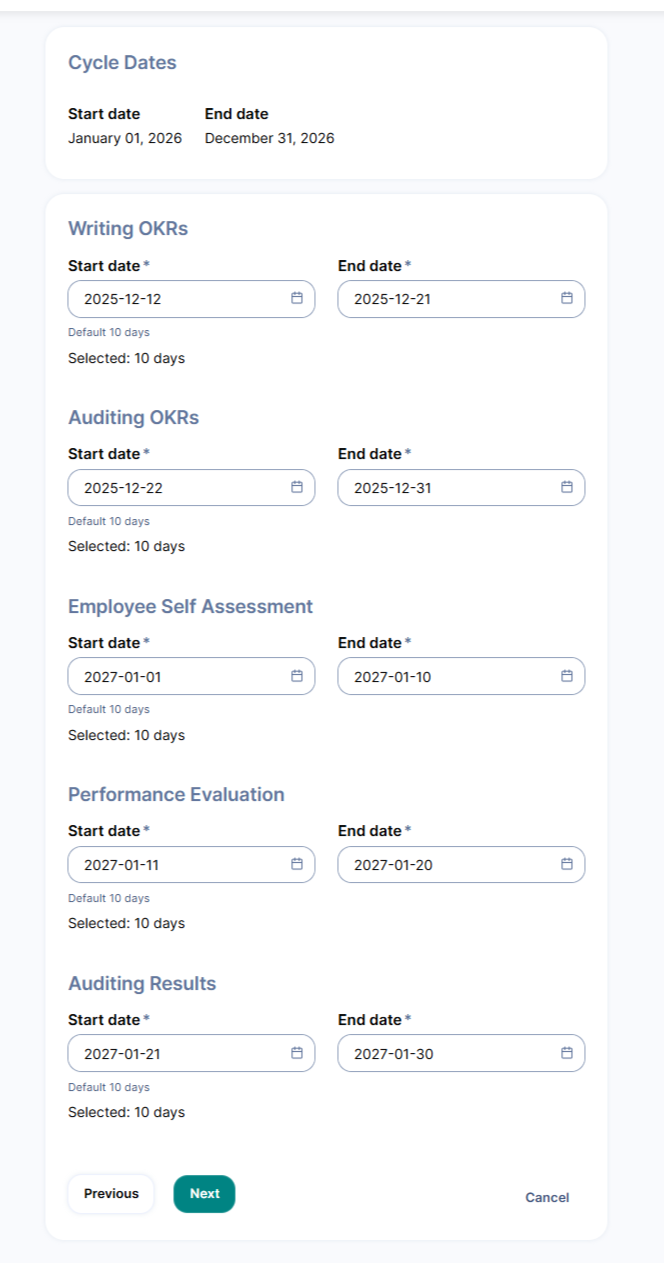
Step 2: Stage Dates
Review and edit the default stage dates if needed. Stage dates must be consecutive and cannot overlap.
If Self-assessment as a separate stage is enabled, an Employee Self-Assessment stage will appear between Auditing OKRs and Performance Evaluation. Set its start and end dates.
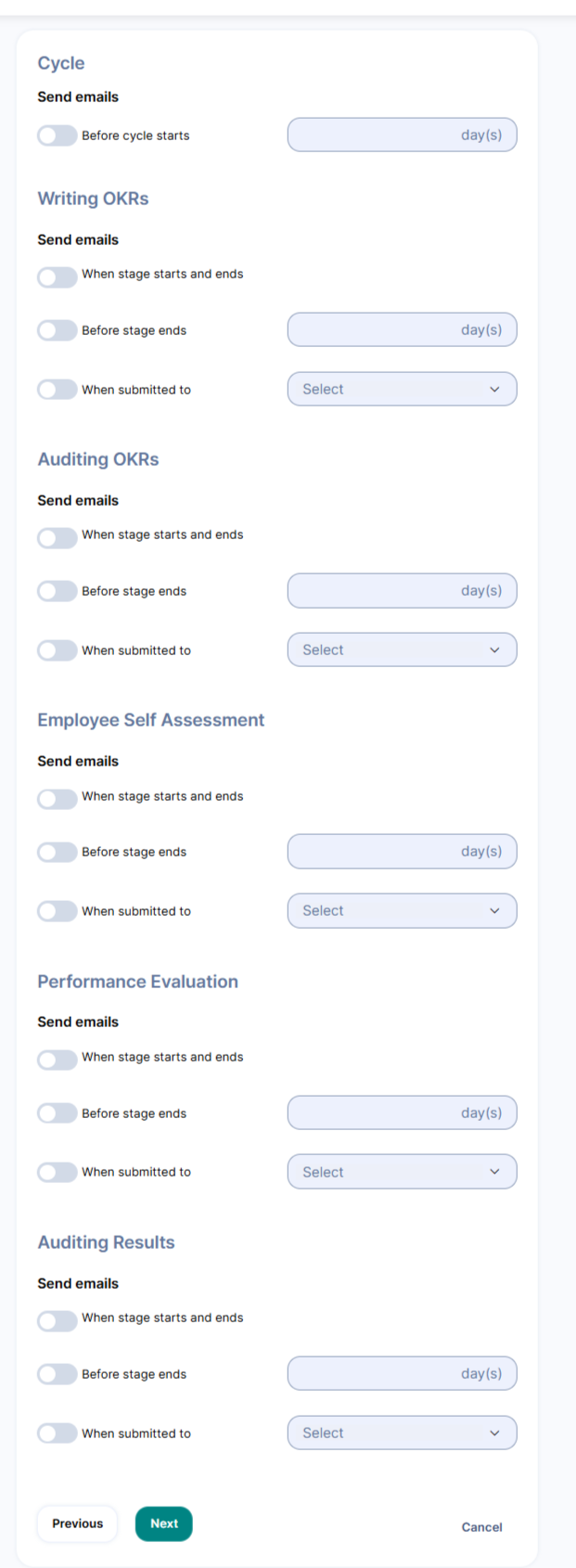
Step 3: Emails
Enable notifications for different evaluation stages.
If Self-Assessment as a separate stage is enabled, an Employee Self-Assessment email section will appear.
You can enable notifications for when the stage starts, when it ends, and before it ends.
Notifications are sent to the employee, observing taskholders, and HR officer.
A notification is also sent when the employee submits their self-assessment.
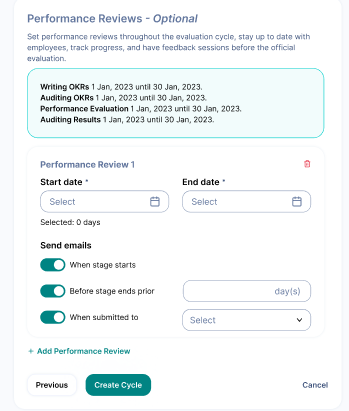
Step 4: Adding Performance Reviews (Optional)
Add performance review cycles if needed.
Note: Review dates must fall between the OKRs Auditing and Performance Evaluation stages.
How to Manage an Evaluation Cycle and its Employees
Main Menu → Performance Evaluation → Performance Evaluation Setup → Evaluation Cycles
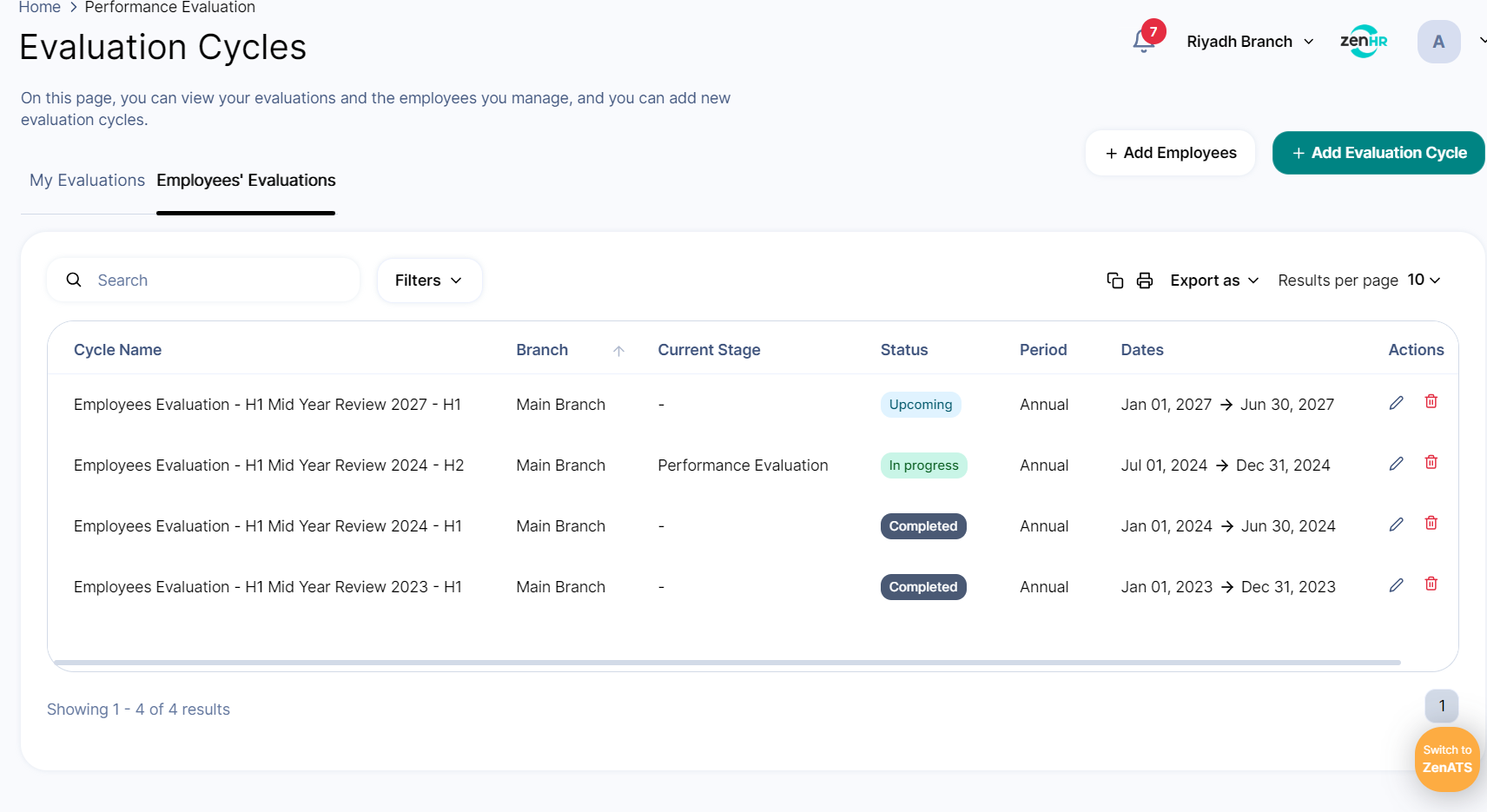
Access the "Employees’ Evaluations" tab to manage evaluations.
Actions Available:
"Edit": Modify cycle details.
"Delete": Remove the cycle (confirmation required).
"Go to Cycle": View the employees in the cycle.
"View Summary": Check cycle details.
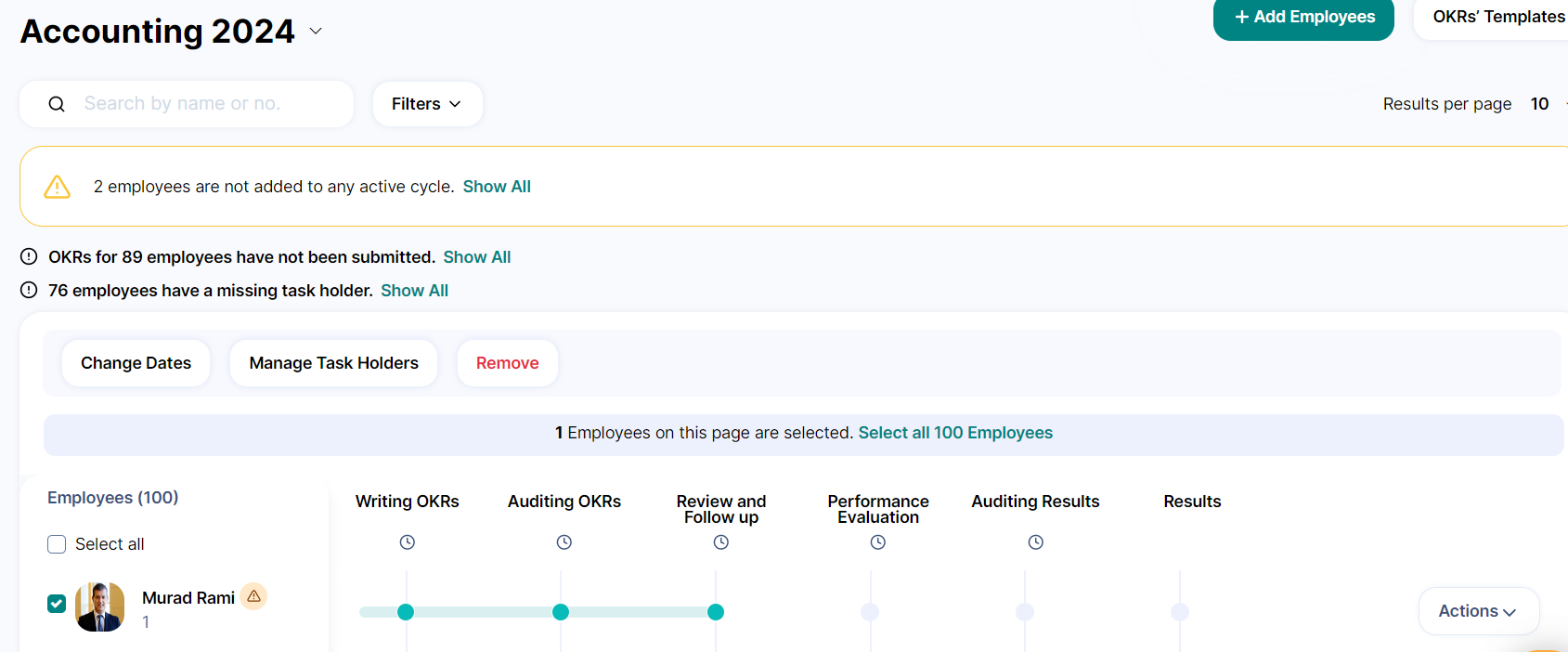
When you click on the button “Go to cycle” in the actions list, the page you will be guided to will show you the employees added to the cycle, in this page, you can:
Add new employees to the cycle by clicking on the “Add Employees” button. This will open a page that will show all the employees from the branches added to the cycle, any added employee will have an “Added” label next to it, you can add multiple employees at once by using the checkboxes.
The “Add employees” button will appear to Super admins, Evaluation admins, and HR admins.
Managing Employees in a Cycle
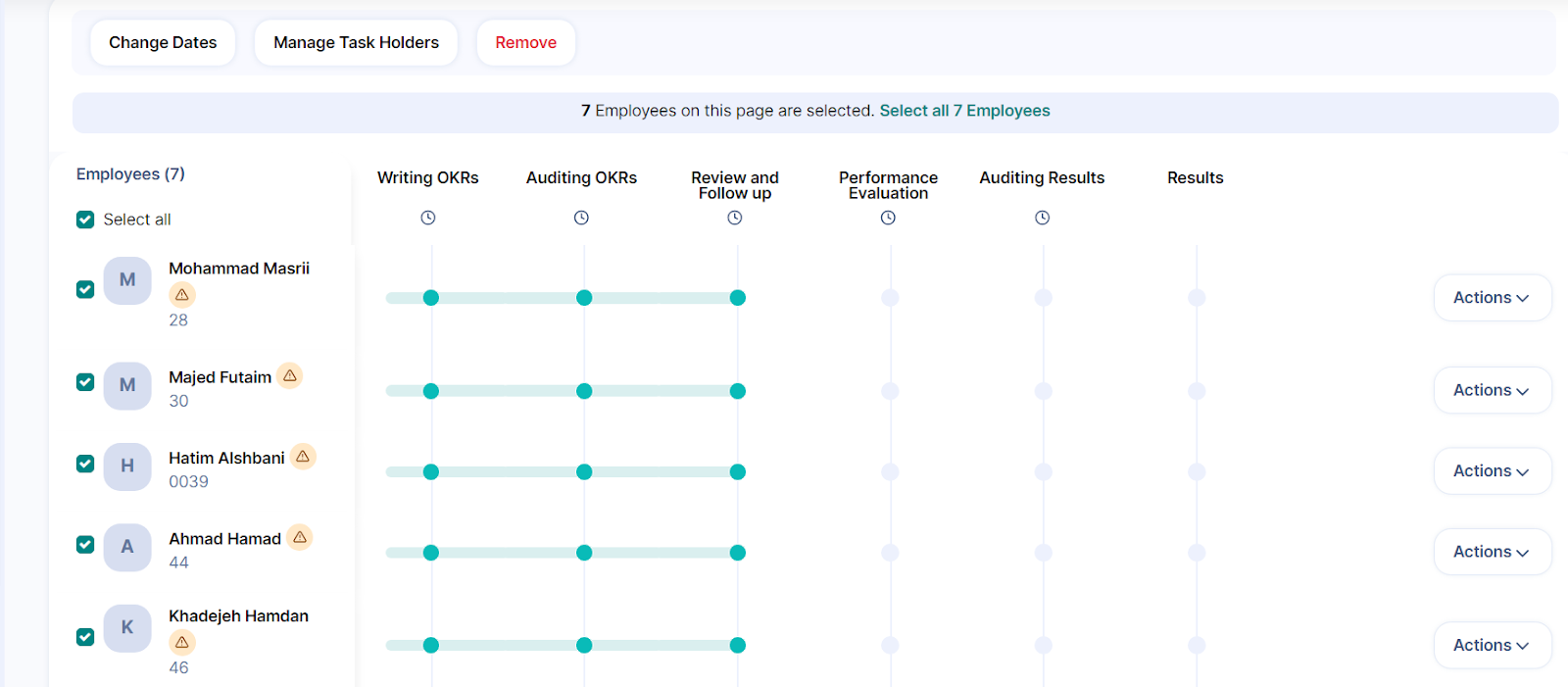
"Add Employees": Select multiple employees at once using checkboxes.
"Remove Employees": Remove employees as needed.
Change Stage Dates: Adjust dates for multiple employees at once.
If Self-assessment as a separate stage is enabled, its dates can be updated in the same way as other stage dates.
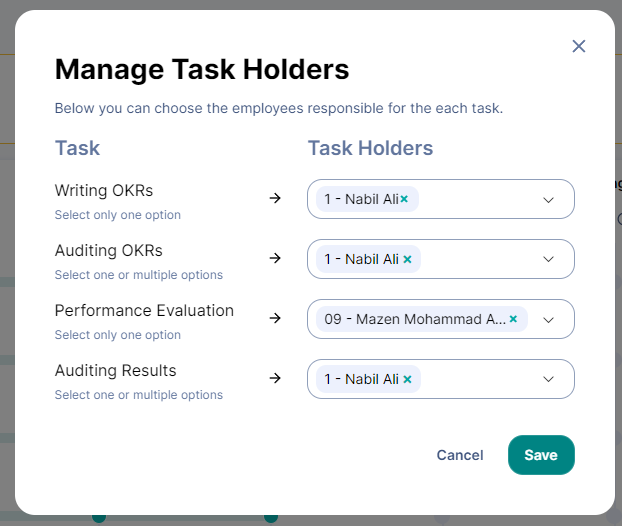
Assign Taskholders: Assign or update taskholders for employees in the cycle.
Bulk Actions
Employees can be added, removed, or assigned new taskholders in bulk.
Note: If Self-Assessment as a separate stage is enabled after a cycle has already started, an admin can add the stage from the cycle’s edit page. It will then be added to all employee evaluations in that cycle. If no changes are made, the cycle will continue as before.
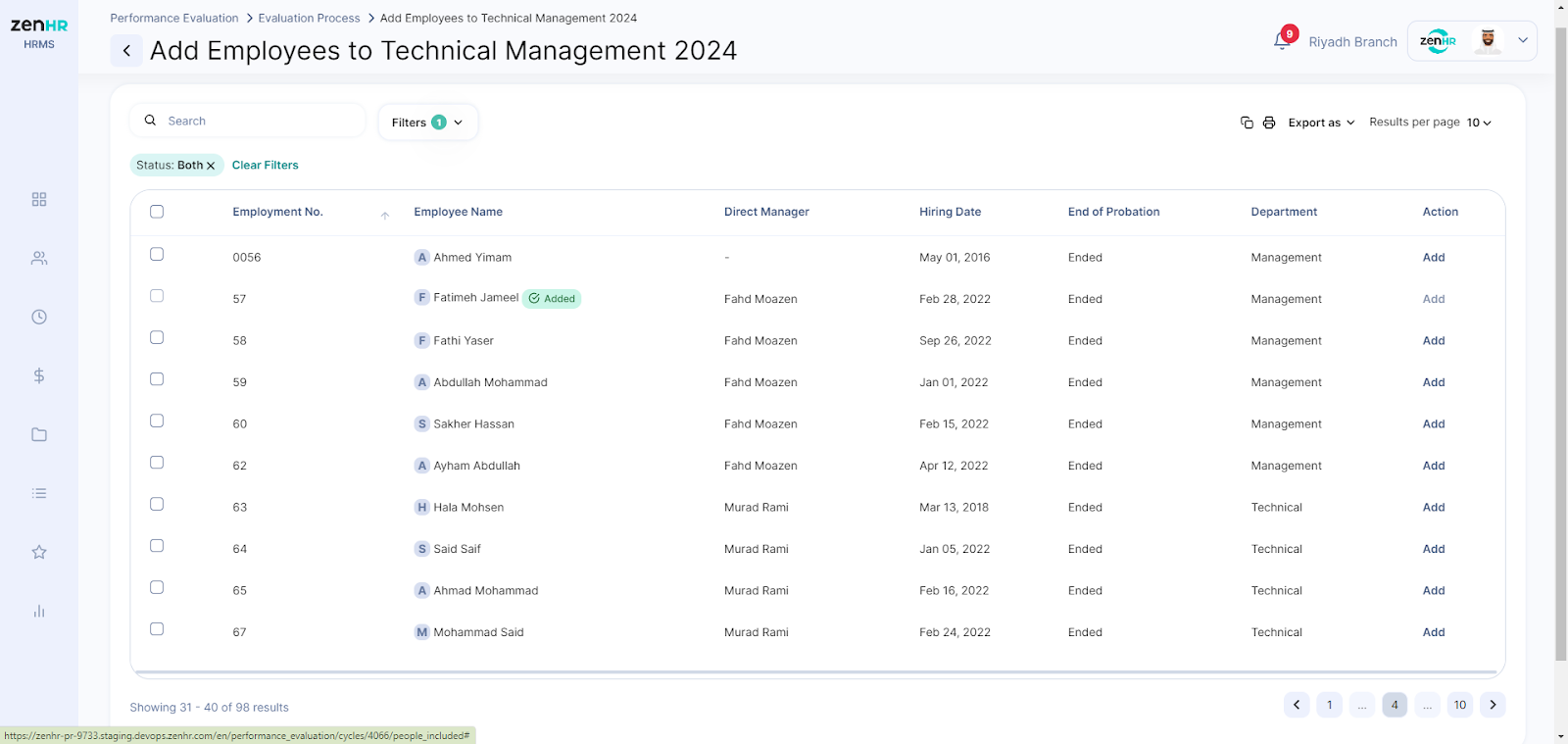
The user can use the filters to choose the organizational level they want to add.
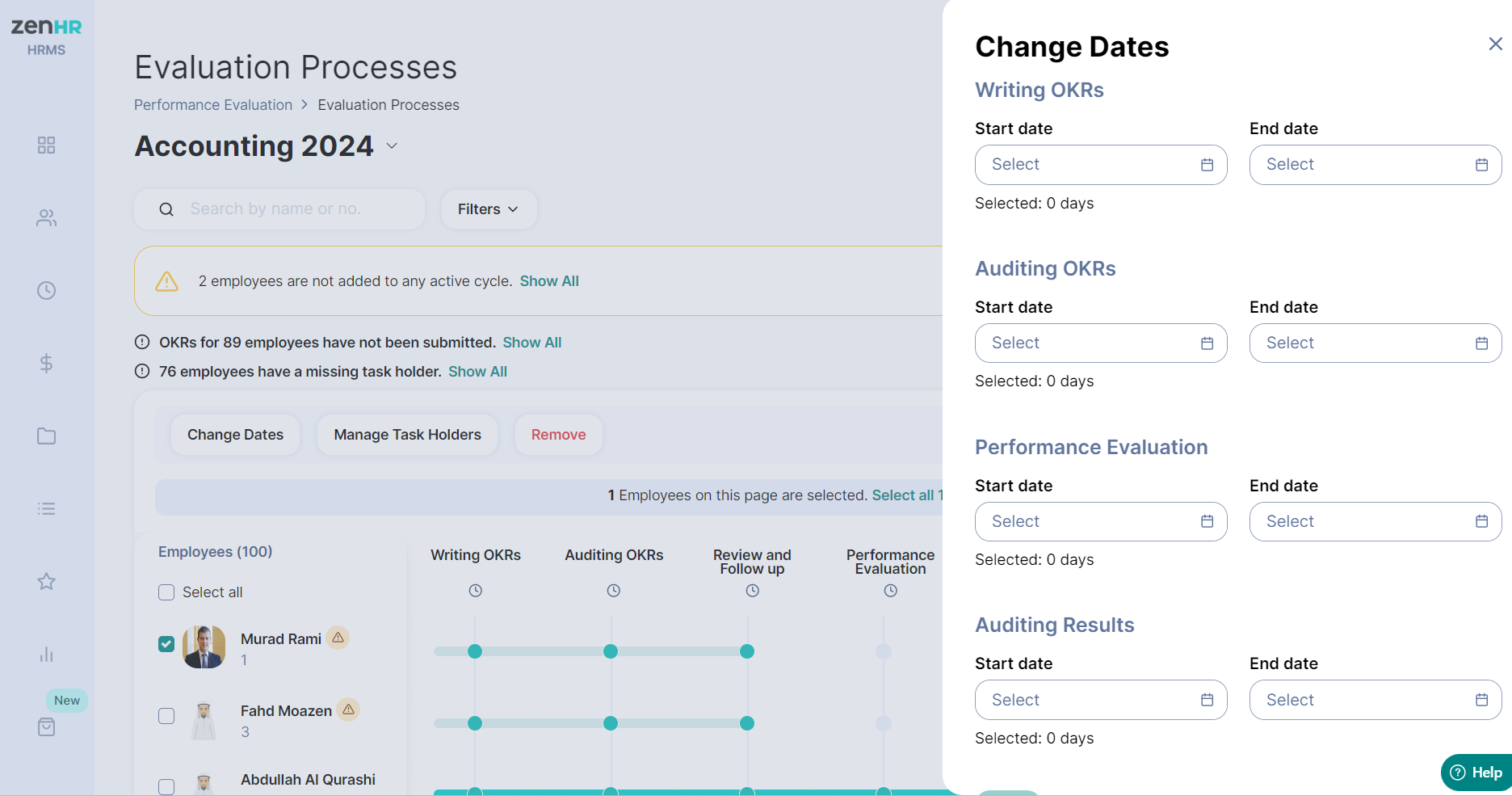
How to change the stakeholders of each stage for the employees
Writing OKRs: One taskholder can be assigned.
Performance Evaluation: One taskholder can be assigned. The same taskholder is also used for the Follow-up and Review stages.
Auditing OKRs and Auditing Results: Multiple taskholders can be assigned.
Employee Self-Assessment: The taskholder is always the employee being evaluated and cannot be changed. It is shown in the taskholder window for reference but is not included in bulk taskholder assignment.
Notes: The evaluation admin can manage competencies, rating types, evaluation templates, evaluation cycles, OKRs reports, and performance evaluation reports. And can only edit OKRs if they have not been submitted, but cannot access follow-ups, performance evaluations, and auditing results.
The evaluation admin (Read only) can view competencies, rating types, evaluation templates, OKRs reports, and performance evaluation reports, as well as employee OKRs, at any time. Results can only be viewed after OKRs have been submitted.
Evaluation reports
If Self-Assessment as a separate stage is enabled, the summarized and detailed evaluation reports will include three additional columns:
Employee Self-Assessment Start Date
Employee Self-Assessment End Date
Self-Assessed By
You can also select Employee Self-Assessment from the evaluation stage filter
Was this article helpful?
That’s Great!
Thank you for your feedback
Sorry! We couldn't be helpful
Thank you for your feedback
Feedback sent
We appreciate your effort and will try to fix the article